Phone Confidence After 60

A Martin Hale guide · Phone Confidence After 60

The Smartphone Handbook After 60

You may want to use your phone without worrying that a tap will take you somewhere unfamiliar. This book gives you clear, independent methods for calls, texts, photos, video chats, settings, organization, and backup-status awareness.

Plus 3 separate bonus books.Including Unexpected Contact Record and Official Support Route.

See what’s inside
The Smartphone Handbook After 60 by Martin Hale
The main book + 3 bonus books, all included

One digital bundle. PDFs to read on any device or print.

170Pagesin the main book
11Chaptersread in any order
3Bonus booksall included
Instant downloadread on any device or print
Refund guarantee30 days to decide

01 · How it helps

For the phone moments that make you stop

Use these lessons when a familiar task suddenly looks different. Each method gives you a calm route to follow.

  1. When you feel lost

    “How do I get back when I have opened the wrong screen?”

    How to return to familiar ground with the lock, Home, and reopen routine. Chapter 01

    “How do I move between apps without losing my place?”

    How to open, switch between, and close apps with care. Chapter 01

  2. When someone calls

    “What do I press when my phone rings and I do not want to make a mistake?”

    How to answer or decline a call when the phone is locked or already in use. Chapter 02

    “How do I use the controls during a call without hanging up?”

    How to use Speaker, Mute, and Keypad during a call. Chapter 02

  3. When a message worries you

    “What should I do with an unexpected text or contact?”

    How to pause an unexpected contact and open official support independently. Chapter 03

    “How do I write a text without sending the wrong thing?”

    How to type, correct, and send a message while keeping the draft. Chapter 03

  4. When settings differ

    “How do I make the words easier to read without hiding important buttons?”

    How to increase text and display size while checking what remains visible. Chapter 06

    “What do I do when the instructions and my menus do not match?”

    How to write down your exact phone identity and search settings using alternate terms. Chapter 08

    “How do I check whether my photos are backed up without changing anything?”

    How to read the photo app's displayed backup status. Chapter 11

02 · What’s inside

Inside the 11 chapters

The book is arranged around ordinary phone tasks, from getting home on the screen to checking photo backup status. Chapters include separate methods, a small task for tomorrow, and a plain example of the problem being solved.

01

Getting Home and Knowing Where You Are

Chapter 1
  1. Practice tap, long-press, swipe, and scroll on a no-risk screen
  2. Find your way Home on an iPhone with Face ID, an iPhone with a Home button, or an Android phone
  3. Go back one screen without closing the task
  4. Open, switch between, and close apps without losing your place
  5. Show and hide the keyboard when it covers the button you need
  6. Return from an unfamiliar screen with the lock, Home, and reopen routine

First moveWhile stationary, open a plain-text screen with no important controls. Observe tap, long-press, swipe, and scroll.

02

Calls, Contacts, and Voicemail

Chapter 2
  1. Answer or decline a call when the phone is locked or already in use
  2. Call a person from Contacts instead of typing the number
  3. Add a new contact from a recent call and correct a wrong entry
  4. Put your most-called people in Favorites for one-tap calling
  5. Use Speaker, Mute, and Keypad during a call without hanging up
  6. Find voicemail and play, save, or delete a message
  7. Find a missed call in Recents and return it from the saved contact card

First moveWrite down which calling app your phone uses: iPhone/iOS, Phone by Google, Samsung Galaxy/One UI, or another manufacturer's app. Then save its official manual page.

03

Texts, Links, and Suspicious Messages

Chapter 3
  1. Open an unread text and return to the full conversation list
  2. Start a new text by choosing the right person from Contacts
  3. Type, correct, and send a message without losing the draft
  4. Dictate a text and review every word before sending it
  5. Save a photo received in a text to Photos or Gallery
  6. Mute or leave a busy group text without blocking family members
  7. Pause an Unexpected Contact and Open Official Support Independently
  8. Record an Unknown Caller or Sender Label Without Replying

First moveWrite down which app you use: Apple Messages, Google Messages, or Samsung Messages.

04

Photos You Can Take, Find, and Send

Chapter 4
  1. Take a clear photo and switch between the front and rear cameras
  2. Find the photo you just took in Photos or Gallery
  3. Send one photo by text from the Photos or Gallery app
  4. Select and share several photos without sending the entire album
  5. Crop, rotate, and undo a photo edit without losing the original
  6. Make a read-only photo index without changing the library

First moveWrite the track your phone uses on paper: Apple Camera and Photos, Pixel Camera and Google Photos, Samsung Camera and Gallery, or another manufacturer’s official guide.

05

Video Calls and Everyday Apps

Chapter 5
  1. Join a video call from a trusted text or email invitation
  2. Start a FaceTime or Google Meet call from a saved contact
  3. Allow camera and microphone access when a video app says they are blocked
  4. Mute, unmute, switch cameras, use the speaker, and leave a video call
  5. Install a requested app from the official store without starting an unwanted paid trial
  6. Find an installed app with iPhone Search, App Library, or the Android Apps list

First moveWrite down whether your device is an iPhone, iPad, general Android device, or Samsung Galaxy. Beside that, write the video app and account you use.

06

Make the Screen Easier to Read and Use

Chapter 6
  1. Record your current display and sound settings before changing them
  2. Increase text and display size without hiding important buttons
  3. Use bold text, higher contrast, and color settings one at a time
  4. Turn on magnification or Zoom only after you know the exit action
  5. Adjust brightness, dark appearance, and screen timeout where you normally read
  6. Set call volume, media volume, ringtone, and vibration separately
  7. Quiet distracting notifications while keeping wanted calls and messages
  8. Put the apps you use most on the first Home screen

First moveStart by writing down your phone family and software version. Apple uses Settings, General, About; Google Android uses Settings, About phone or About tablet, Android version; Samsung’s One UI 7 guide uses Settings, About phone, Software information.

07

Make the Phone Hard to Mess Up

Chapter 7
  1. Compare simplified-view options with current guide labels and a read-only task list
  2. Turning Samsung Easy mode on goes together with knowing how to turn it off
  3. Visible Android navigation buttons put fixed Back, Home, and Overview targets at the screen edge
  4. In Control Center or Quick Settings, remove the controls you do not use
  5. Review One App's Notification Setting
  6. To prevent controls from moving when the phone rotates, keep the screen in portrait orientation

First moveBefore you change anything, photograph the current Home screen and write down the route for undoing the setting.

08

Finding Settings When Menus Look Different

Chapter 8
  1. Write Down Your Exact Phone Identity
  2. Search Settings Using Alternate Terms
  3. Trace an App Permission Without Guessing
  4. Translate a Generic Android Path
  5. Use Official Support After a Menu Change

First moveStart a Phone identity note. Copy the exact model and software version from the phone or its official identification page.

09

Choosing the Easiest Phone for You

Chapter 9
  1. Build a must-have card for vision, hearing, hand control, apps, family support, and budget
  2. Decide whether to simplify your current phone or replace it
  3. Compare iPhone and Android with the same everyday tasks
  4. Read Samsung A, S, Z, and FE model names without choosing by the letters
  5. Compare a standard smartphone, a Jitterbug smartphone, and a flip phone by missing functions
  6. Compare Two Phones with a Familiar-Task List
  7. Use a New Phone for Five Familiar Practice Tasks

First moveMake your must-have card. Include vision, hearing, hand control, required apps, family support, and your spending ceiling.

10

Everyday Calendar, Reminders, Alarms, Notes, and Contacts

Chapter 10
  1. Create One Calendar Event and Check Every Field
  2. Put a Reminder on the Right List
  3. Label an Ordinary Alarm So You Know Why It Rings
  4. Make a Note with a Short Checklist
  5. Clean Up One Contact Card Without Losing the Original Details
  6. Build a Five-Minute Weekly Organizer Review

First moveCreate one calendar event and reopen it from the month view.

11

Photos, Backup Status, and Getting Familiar with a New Phone

Chapter 11
  1. Draw a Familiar Phone Layout Map
  2. Organize Selected Photos into a Named Album
  3. Read a Photo App's Displayed Backup Status
  4. Make a Nonsecret List of Frequently Used Apps
  5. Check Which Familiar Apps and Photos Are Visible on a New Phone

First movePut your current phone, its charging equipment, paper, and a pen together. Start the before-switch inventory with one important item under each heading.

03 · Your 3 bonus books

Three large-print bonus guides

You also receive guides for unexpected contacts, easier-to-read settings, and photo organization with backup-status records. They are designed for visible details, familiar settings, and official support routes.

$32 estimated bonus valueAll 3 included with your $29 book

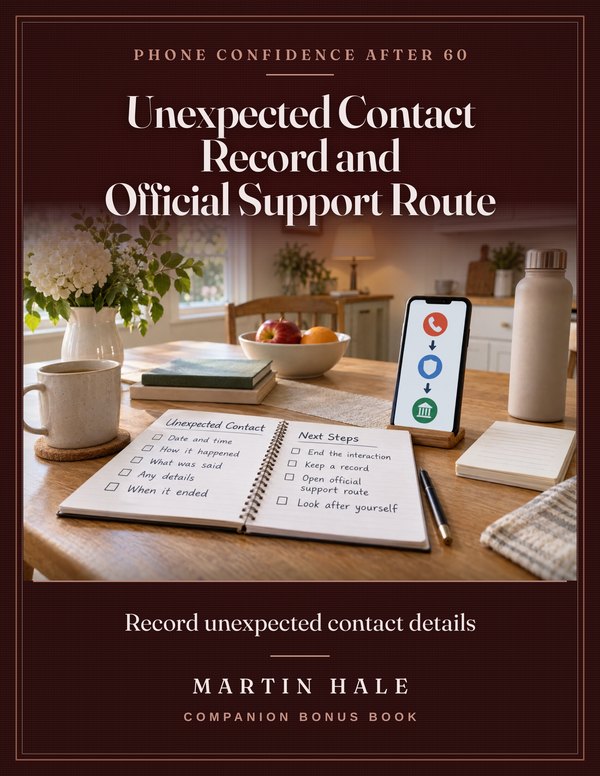
Bonus book 1 of 3 Unexpected Contact Record and Official Support Route by Martin Hale

Unexpected Contact Record and Official Support Route

Record unexpected contact details

A large-print visible-detail record for an unexpected contact, ending the interaction, and independently opening a known official support route. It gives no sender-management or transaction instructions. 26 pages.

Estimated value $9Included with the $29 book
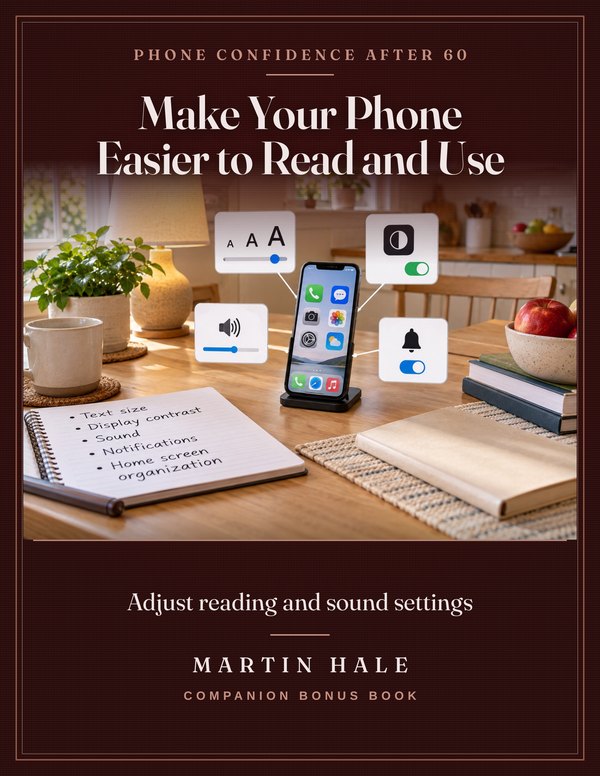
Bonus book 2 of 3 Make Your Phone Easier to Read and Use by Martin Hale

Make Your Phone Easier to Read and Use

Adjust reading and sound settings

A large-print guide to ordinary text size, display contrast, sound, notification, and home-screen organization settings on iPhone and Android. 36 pages.

Estimated value $11Included with the $29 book
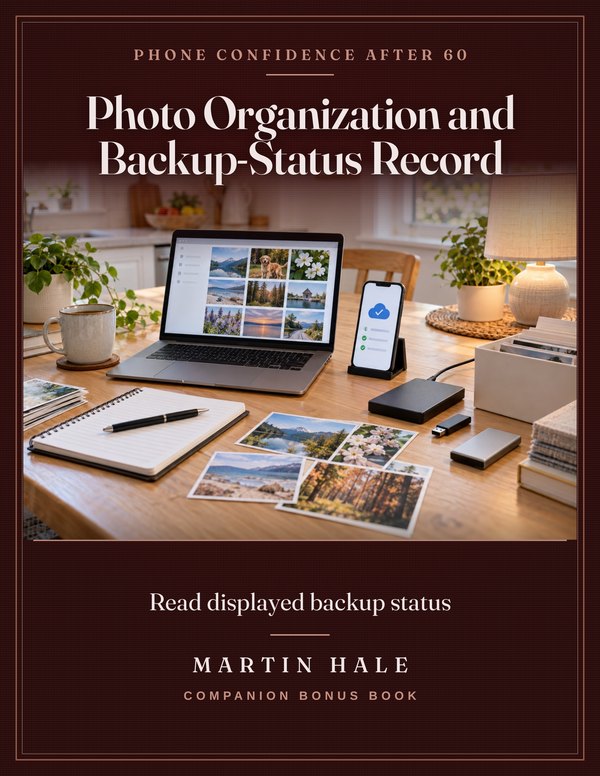
Bonus book 3 of 3 Photo Organization and Backup-Status Record by Martin Hale

Photo Organization and Backup-Status Record

Read displayed backup status

A large-print record for photo organization, storage awareness, exact displayed backup-status wording, and independently locating official guidance while leaving settings and content unchanged. 19 pages.

Estimated value $12Included with the $29 book

Plus, at no extra charge: lifetime updates to the main book.

Individual values are estimates set by Martin Hale, not previous selling prices. No physical books are shipped.

04 · The honest part

What you won’t find in this book.

Not in this book: A claim that every phone has the same menu path.

I show you how to identify your phone and software, then find a dependable route when labels differ.

Not in this book: Instructions to share passwords or account details.

I keep the focus on visible phone steps and independently opening official support.

Not in this book: A shortcut that changes settings without checking the way back.

I show you how to record the current setting and the undo route before making a change.

Not in this book: A promise that a new phone will suit everyone.

I show you how to compare phones using familiar tasks and your own must-have list.

Martin

Martin Hale
Martin Hale

05 · Who wrote it

A patient technology explainer at the kitchen table

Martin Hale is a 68-year-old patient technology explainer who teaches from the same kitchen-table setup viewers can copy at home.

For 32 years, Martin has explained consumer technology in plain English. He demonstrates current iPhone and Android menus on screen, identifies the phone model and software version when it matters, and links to official support pages.

Martin speaks slowly, clearly, and without talking down to anyone. He does not ask for passwords or present himself as Apple or Google support; he helps adults over 60 follow one useful step at a time.

06 · The offer

$29 once. No subscription. Yours to keep.

The Smartphone Handbook After 60
Main book · 170 pages

Plus all 3 bonus books included

Digital books to download, read or print.
No subscription. No shipping.

170 pages · 11 chapters · 3 bonus books

The Smartphone Handbook After 60

For $29, you receive the 170-page digital book, the three bonus guides, and the 39-page workbook as digital PDF files. After payment, download the files and begin with the task that matters to you.

$29

The materials let you choose a familiar phone task and work through it at your own pace.

What you get for $29:

Individual values below are publisher estimates. Everything is included in your $29 purchase.

The Smartphone Handbook After 60

70 Clear iPhone and Android Lessons for Everyday Use After 60

$29
Unexpected Contact Record and Official Support Route cover
Bonus book 1Unexpected Contact Record and Official Support Route

A large-print visible-detail record for an unexpected contact, ending the interaction, and independently opening a known official support route. It gives no sender-management or transaction instructions. 26 pages.

Est. value$9Included
Make Your Phone Easier to Read and Use cover
Bonus book 2Make Your Phone Easier to Read and Use

A large-print guide to ordinary text size, display contrast, sound, notification, and home-screen organization settings on iPhone and Android. 36 pages.

Est. value$11Included
Photo Organization and Backup-Status Record cover
Bonus book 3Photo Organization and Backup-Status Record

A large-print record for photo organization, storage awareness, exact displayed backup-status wording, and independently locating official guidance while leaving settings and content unchanged. 19 pages.

Est. value$12Included
The printable field kit

39 printable pages: the worksheets and cards to use beside the book.

Included
Lifetime updates

Future revisions of this book at no extra charge.

$21
3 bonus books combined$32
Total estimated package value$82
You pay today $82$29

Secure one-time checkout. Your digital books are ready to download after confirmed payment.

Instant download · PDF files · print only the pages you need

Published by Martin Hale

The 30-day guarantee. If the materials are not right for you, request a refund within 30 days.

07 · Questions

Questions worth answering

What exactly do I receive?

You receive the 170-page digital book, three bonus guides, and the 39-page workbook. They are delivered as digital PDF files after payment.

Can I print it?

The materials are supplied as digital PDF files. You can use them on a screen or print them according to the options available to you.

Is it for me?

This book is for a reader who wants independent methods for everyday smartphone tasks. You can pick the lesson that fits the task in front of you.

How do I start?

After payment, download the PDF files. Start with the chapter that matches the phone task you want to handle.

What if it does not help me?

You are covered by the 30-day guarantee. Request a refund within 30 days if the materials are not right for you.

What if my menus look different?

The book includes methods for recording your exact phone identity, searching with alternate terms, and using official support after a menu change. It also explains why model and software differences can matter.

Does the book cover photos and backup status?

Yes. It covers taking, finding, sending, editing, and organizing selected photos. It also shows you how to read the backup status displayed by your photo app.

Use the smartphone you already own.

Choose a task that matters to you. Follow the visible steps, keep a written note when useful, and return to the book whenever you need it.

$29 once · 30-day refund guarantee · instant digital download

Wait — one thing

Keep a clear phone guide nearby

The Smartphone Handbook After 60 is a digital PDF guide for everyday phone tasks. It includes the book, bonus guides, and workbook after payment.